Designing a home office often revolves around finding the perfect desk and chair, but one of the most critical elements of a productive workspace is completely invisible until you turn it on: the lighting. A poorly lit room does more than just cast unflattering shadows on your morning video calls; it creates a harsh visual environment that actively drains your energy.
Working in a room with inadequate illumination forces your eyes to constantly adjust between the bright glare of your monitor and the dark surroundings. Conversely, sitting under harsh, overly bright overhead bulbs can trigger tension headaches and midday fatigue.
This guide bridges the gap between professional aesthetics and biological function. We will explore the physics of light in an indoor environment and provide actionable home office lighting tips to help you look professional on camera while protecting your long-term visual health.
The Basics of Workspace Illumination
What are the best home office lighting tips? The best home office lighting tips involve layering your illumination to balance aesthetics and function. This includes maximizing natural light, adjusting lux levels for task visibility, selecting the correct color temperature for alertness, and implementing bias lighting to prevent ocular fatigue.
Effective lighting is never achieved with a single bulb. It requires a layered approach: ambient light (general room illumination), task light (focused light for reading or writing), and accent light (for depth and video calls).
Understanding Lux Levels and Color Temperature
To create a comfortable environment, you must understand the two primary measurements of light: brightness and color.
Managing Lux Levels
Brightness is measured in “lux.” A standard living room might sit comfortably at 100 to 150 lux, which is ideal for relaxing but insufficient for working. A home office requires roughly 300 to 500 lux levels to ensure paperwork and physical tasks can be seen clearly without squinting. If your room is too dark, your computer screen becomes a glaring flashlight aimed directly at your retinas.
Choosing the Right Color Temperature
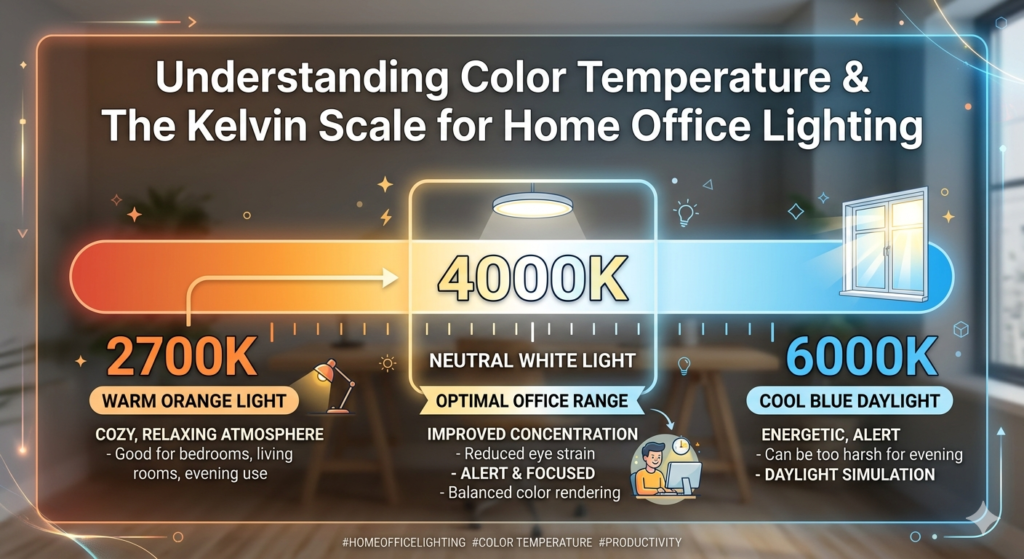
The color of light is measured in Kelvin (K).
- Warm Light (2700K – 3000K): These emit a cozy, yellowish glow. They are perfect for relaxing in the evening but can signal your brain to release melatonin, making you feel sleepy during the workday.
- Cool Light (4000K – 5000K): This range mimics natural daylight. Utilizing this color temperature during the day triggers alertness and improves cognitive focus.
For the best physiological results, utilize cooler, daylight-mimicking bulbs during your primary working hours, and switch to warmer desk lamps if you must work late into the evening.
Strategies for Glare Reduction
Even with the perfect color temperature, light can become a hazard if it bounces directly off your screen into your eyes. Glare forces you to squint, causing severe ocular muscle tension. As detailed in our comprehensive guide, Computer Vision Syndrome: Preventing Digital Eye Strain, unmanaged glare is a primary culprit behind chronic tension headaches.
Effective glare reduction starts with geometry.
- Never sit with a window directly behind you: This turns your screen into a mirror and casts your face in deep shadow on video calls.
- Never sit facing a bright window: The contrast between the bright sun and your darker screen will overwhelm your retinas.
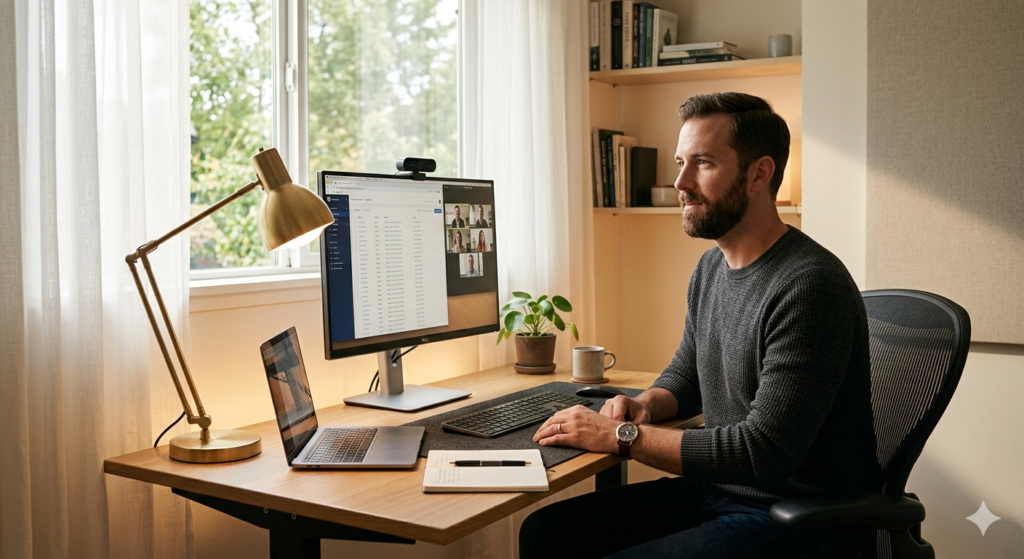
- The Optimal Position: Place your desk perpendicular to windows. This allows the natural light to wash across your workspace horizontally, illuminating your face for video calls without striking your monitor glass. If the sun is too harsh, diffuse it using sheer curtains or blinds.
Perfecting Lighting for Video Calls
Looking professional on camera requires flat, even lighting across your face. Overhead room lights often cast downward shadows, creating dark circles under your eyes.
To fix this, you need a “key light” positioned behind your monitor and angled toward your face. This can be a dedicated ring light or two small desk lamps placed on either side of the screen. Ensure these lights are diffused (softened) so they do not cause you to squint while speaking.
The Importance of Bias Lighting
While task lighting illuminates your desk and key lighting illuminates your face, you must also manage the contrast behind your screen. When you look at a bright monitor in a dimly lit room, your pupils must constantly expand and contract as your eyes dart from the screen to the wall behind it.
Bias lighting solves this. This involves placing a subtle light source on the back of your monitor, casting a soft glow onto the wall behind your setup. This raises the ambient light level directly behind the screen, drastically reducing the harsh contrast and allowing your pupils to remain relaxed.
To achieve targeted task illumination on your desk surface without causing screen glare or washing out your webcam, adding a dedicated, downward-facing fixture above your screen is highly effective.
Conclusion
Mastering your visual environment is a fundamental part of workspace ergonomics. By applying these home office lighting tips, you can transform a fatiguing room into a hub of focus and energy. Remember to position your desk perpendicular to natural light, utilize cooler color temperatures during the day, and implement bias lighting to soften the contrast around your screens. A well-lit workspace not only ensures you look your best on camera but actively protects your eyes from the invisible strain of digital work.
Frequently Asked Questions (FAQ)
What is the best color temperature for an office?
The best color temperature for an active workspace is between 4000K and 5000K. This range mimics natural daylight, which helps suppress melatonin production and keeps the brain alert and focused during the day.
How do I stop window glare on my computer screen?
To stop window glare, never position your monitor directly opposite a window. Turn your desk 90 degrees so the window is parallel to your setup. Additionally, use sheer curtains to diffuse direct sunlight into a softer, more manageable glow.
What is bias lighting and why do I need it?
Bias lighting is a light source placed behind your monitor that illuminates the wall. You need it because it reduces the sharp contrast between your bright digital screen and the darker room, which minimizes pupillary fatigue and eye strain.
Why do I look so dark on Zoom calls?
You look dark on video calls because the primary light source in your room is either directly overhead or behind you (backlighting). To fix this, you must place a soft light source behind your webcam, pointing directly at your face.