Using two screens is a proven way to boost productivity, allowing you to cross-reference documents or code without constantly switching tabs. However, for many workers, the upgrade to extra screen real estate comes with a painful side effect: chronic neck stiffness.
If you find yourself constantly rotating your head to the left or right, you are subjecting your cervical spine to repetitive stress. This condition, often dubbed “text neck” or rotational fatigue, is rarely caused by the work itself but rather by the geometry of your desk.
This guide explores the specific mechanics of setting up dual monitors to keep your spine neutral and your workflow efficient.
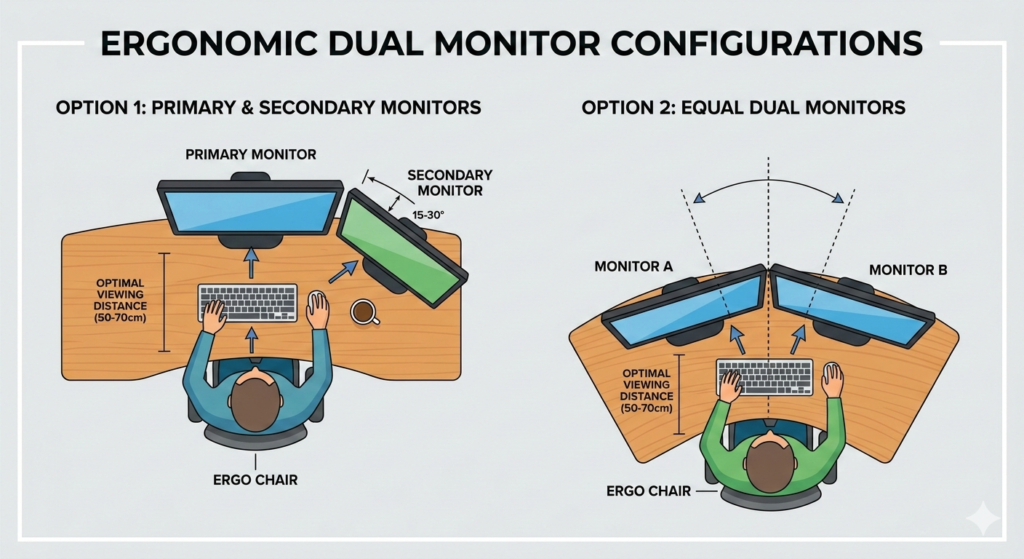
Determine Your Usage Pattern
Before you move a single piece of equipment, you must analyze how you work. Not all dual-monitor users have the same needs.
Setting up dual monitors correctly starts with identifying your primary usage: do you use one screen 80% of the time (Primary/Secondary) or both equally (50/50 Split)? This ratio dictates the physical position of the displays to minimize neck rotation.
There is no “one size fits all” layout. Arranging your screens symmetrically when you actually focus on one side 90% of the time will guarantee neck pain.
Scenario A: The Primary/Secondary Setup (80/20 Rule)
This configuration is for users who have a clear “main” task (e.g., writing, designing, or gaming) and use the second screen for support (e.g., email, Slack, or music).
The Layout
- The Primary Monitor: Place this screen directly in front of you, centered on your keyboard and your nose. You should be able to work on this screen without turning your neck at all.
- The Secondary Monitor: Place this screen immediately to the left or right of the primary one.
- The Angle: Angle the secondary monitor inward significantly (about 30 degrees) so that it faces you.
Why it works: Your neck remains neutral for the majority of the day. You only glance at the secondary screen with your eyes or a slight head turn, rather than holding a twisted posture for hours.
Scenario B: The 50/50 Setup (The V-Shape)
This configuration is for users who use both screens equally. Examples include software developers comparing code, financial analysts looking at two spreadsheets, or researchers referencing a PDF while writing.
The Layout
- The Center Point: The gap where the two monitor bezels meet should be centered directly in front of your nose.
- The Angle: Angle both monitors inward to form a shallow “V” shape. Imagine the screens are like an open book.
- The Keyboard: Center your keyboard on the “V” gap.
Why it works: This setup minimizes the degree of rotation required to see either screen. instead of turning 45 degrees to see a side monitor, you only turn 15 degrees left or right to see the center of either display.
Screen Alignment and Height
Once you have determined the horizontal layout, you must address the vertical screen alignment.
For both setups, the top of the actual screen (not the plastic casing) should be at or slightly below eye level. A common issue with dual monitors is that they are often different models with different stand heights, causing your eyes to jump up and down as they move across the gap.
To solve this misalignment and free up desk space, mounting your screens is often the most effective solution. A mount allows you to micro-adjust the height and tilt of each screen independently, ensuring the pixels line up perfectly across the bezel gap.
Viewing Angle and Distance
Regardless of which layout you choose, the distance rules outlined in “The Ultimate Ergonomic Desk Setup Guide: Measurements & Rules” still apply.
Both monitors should be roughly an arm’s length away. If one monitor is closer than the other, your eyes will constantly have to refocus (accommodation), which can lead to headaches and digital eye strain. Ensure the curve of your setup keeps both screens at an equidistant radius from your face.
Conclusion
The key to setting up dual monitors without pain is reducing the cumulative load on your neck muscles. By categorizing your workflow into an 80/20 or 50/50 split, you can place your screens where your eyes naturally fall. Remember: move your eyes first, your head second, and your shoulders never.
Frequently Asked Questions (FAQ)
Should my dual monitors be flat or curved?
If you have two flat monitors, angling them in a “V” shape mimics the benefit of a curved screen. However, using two aggressively curved monitors side-by-side can sometimes create awkward viewing angles at the far edges.
Is it better to stack monitors vertically?
Vertical stacking is excellent for reducing side-to-side neck rotation. It is preferred by programmers and stock traders. However, it requires more up-and-down neck movement (extension/flexion), so ensure the top monitor is angled downward.
How do I match the colors on dual monitors?
Even identical models can have slight color variations. Use your operating system’s color calibration tools (or the buttons on the monitor OSD) to match brightness, contrast, and color temperature (Kelvin) to reduce eye strain.
Can I mix a landscape and portrait monitor?
Yes. This is the “PLP” (Portrait-Landscape-Portrait) or mixed setup. It is highly ergonomic for coding or reading long documents on the vertical screen while using the horizontal screen for standard work. Align the top of the landscape monitor with the top third of the portrait monitor for the best eye-line comfort.