If you frequently experience dry eyes, blurred vision, or tension headaches by mid-afternoon, the culprit might be resting right in front of you. While most people focus on adjusting their chair or keyboard for ergonomics, the distance between your eyes and your screen is often overlooked.
Positioning a monitor too closely forces the tiny ciliary muscles in your eyes to work overtime to maintain focus. Conversely, placing it too far away causes you to unconsciously crane your neck forward, destroying your posture and leading to upper back pain.
Finding the exact “sweet spot” requires understanding the actionable math behind visual health. This guide breaks down the essential monitor distance rules to help you optimize your workspace for maximum visual comfort and long-term eye health.
The Baseline: The Arm’s Length Rule
When determining where to place your screen, the most reliable starting point is based on your own body’s proportions rather than a rigid numerical measurement.
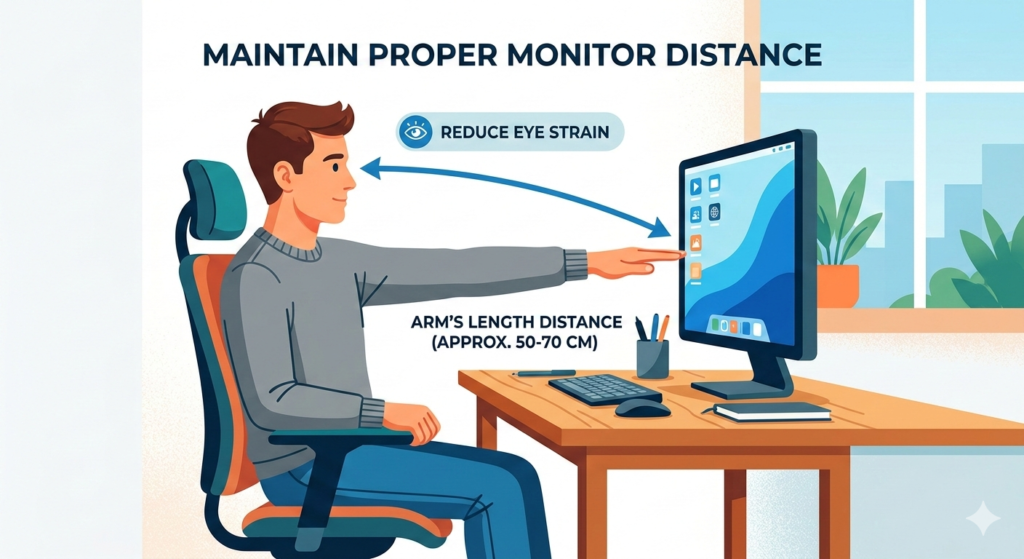
The standard rule for monitor distance is to keep the screen roughly 20 to 30 inches away from your eyes, which is approximately one arm’s length. This specific distance prevents excessive convergence of the eyes, minimizing muscular fatigue and reducing the risk of digital eye strain.
To test this, sit back in your chair in your normal typing posture and extend your arm horizontally straight ahead. The tips of your middle fingers should just barely touch the screen. If your palm rests flat against the glass, the monitor is too close. If you cannot reach the screen without leaning forward, it is too far away.
How Screen Resolution and Pixel Density Alter the Rules
While the arm’s length rule is an excellent baseline, modern technology requires us to factor in the specific hardware you are using. The ideal distance shifts depending on your screen resolution and the physical size of the display.
Understanding Pixel Density (PPI)
Pixel density, measured in Pixels Per Inch (PPI), determines how sharp an image appears. A 24-inch monitor with a 1080p resolution has a lower pixel density than a 24-inch 4K monitor.
If your pixel density is low (e.g., a large 32-inch monitor running at only 1080p), sitting too close will allow you to see individual pixels. This causes the text to look blurry or jagged, prompting your eyes to strain as they attempt to sharpen an inherently fuzzy image. In this case, you must push the monitor further back to achieve visual comfort.
Adjusting for Screen Size
Larger screens naturally dominate more of your field of view.
- 24-inch to 27-inch monitors: These perfectly fit the standard arm’s length rule (20–30 inches).
- 32-inch monitors and larger: These typically require a distance of 30 to 40 inches. If a massive screen is placed at arm’s length, you will be forced to physically turn your head to view the edges of the display, leading to neck strain.
Fine-Tuning Monitor Height and Posture
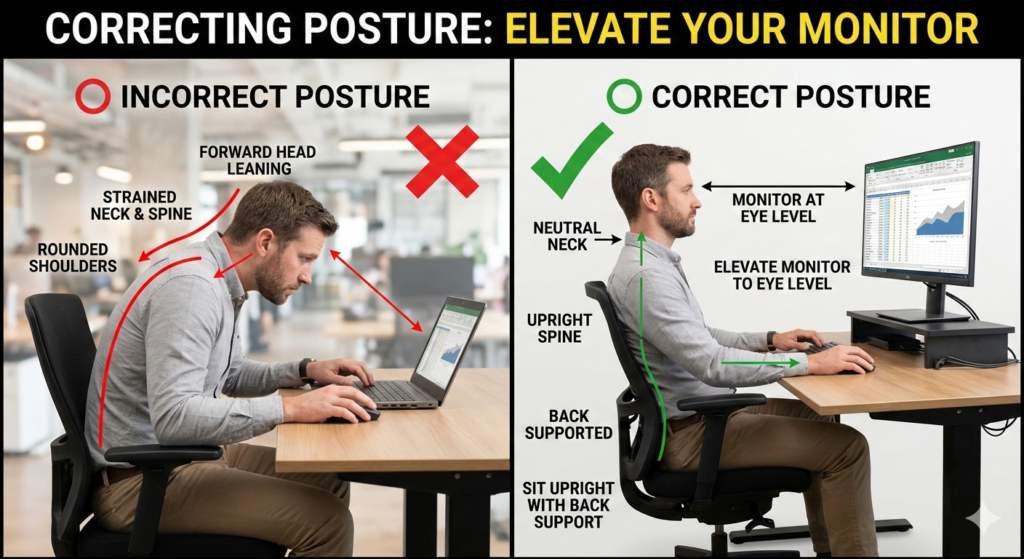
Getting the distance right is only half the battle; maintaining that distance throughout the workday is the real challenge. If your monitor is positioned too low on the desk, you will naturally slouch and lean forward, immediately ruining the distance you just measured.
To maintain the correct viewing distance without compromising your spine, the top edge of the screen must be at or slightly below your eye level. This foundational ergonomic concept is detailed further in our foundational guide, “The Ultimate Ergonomic Desk Setup Guide: Measurements & Rules“.
If your current monitor lacks height adjustability, you must elevate the display to prevent this forward-leaning posture. Placing a sturdy platform beneath the base is a simple, highly effective way to lift the screen to your natural eye line, ensuring your carefully measured distance remains consistent all day long.
Conclusion
Protecting your eyes in a digital workspace is a matter of applying simple geometry. By combining the arm’s length rule with adjustments for your specific screen resolution and size, you can easily establish proper monitor distance rules. Remember to elevate your screen to eye level so that you do not unconsciously lean forward and undo your ergonomic setup. Small mathematical adjustments to your desk layout today will yield significant benefits for your visual comfort tomorrow.
Frequently Asked Questions (FAQ)
What happens if I sit too close to my monitor?
Sitting too close to a monitor forces the eyes to converge and the ciliary muscles to contract continuously to maintain focus. Over time, this causes digital eye strain, blurred vision, dry eyes, and tension headaches.
Does a curved monitor change the distance rules?
Yes, slightly. Curved monitors are designed to keep the edges of the screen at the same focal distance as the center. You still use the arm’s length rule as a baseline, but the curvature allows for a slightly wider field of view without requiring you to turn your head or sit further back.
How far should a 32-inch monitor be from my eyes?
For a larger 32-inch monitor, the standard arm’s length rule usually needs to be extended. An ideal distance is typically between 30 and 40 inches to ensure you can see the entire screen without excessive neck movement.
How does text scaling affect monitor distance?
If you sit at the correct ergonomic distance but find yourself leaning forward to read small text, do not move the monitor closer. Instead, use your operating system’s display settings to increase the UI scaling or text size to 125% or 150% to maintain visual comfort.