You have perfected your posture, adjusted your chair height, and applied the 20-20-20 rule, yet you still log off at 5:00 PM with a throbbing pain behind your eyes. When physical adjustments to your desk layout fail to provide relief, the source of your discomfort is likely radiating directly from the hardware itself.
A persistent headache from computer use is rarely a mystery; it is a mechanical response to visual stress. While modern monitors look crisp and clear to the naked eye, the technology powering them often produces invisible fluctuations in light that wreak havoc on your neurological system.
This troubleshooting guide delves into the technical specifications of your digital workspace. We will explore how hidden screen mechanics, harsh surface reflections, and improper color balancing quietly exhaust your optic nerves and trigger severe physical pain.
The Hidden Causes of Digital Headaches
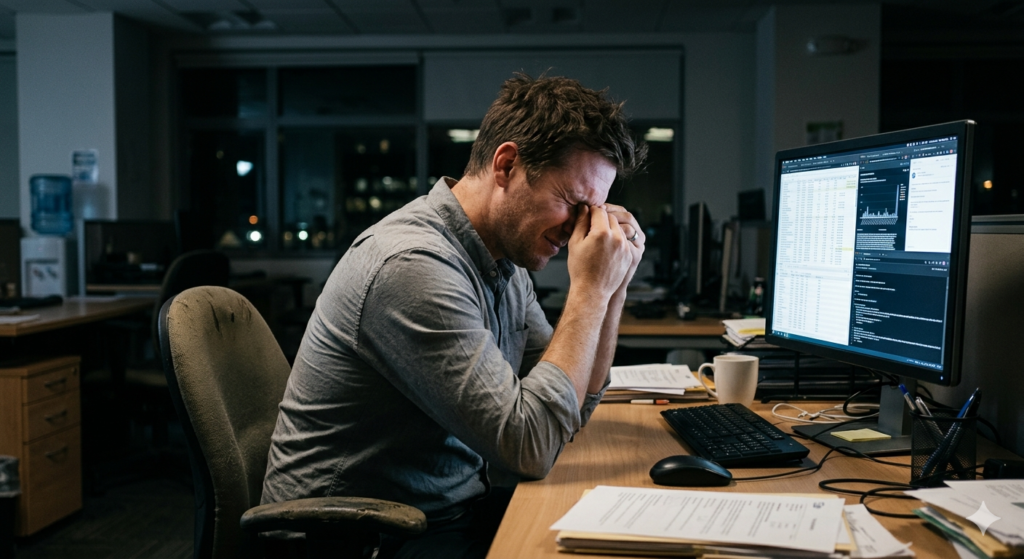
What causes a headache from computer use? A headache from computer use is typically a tension headache triggered by continuous ocular muscle fatigue. This neurological fatigue is frequently caused by invisible technical factors, such as low refresh rates, PWM flickering, and harsh screen glare, which force the eyes to work relentlessly to process unstable digital light.
When your visual system struggles to interpret a signal, the tiny muscles in and around your eyes go into overdrive. This sustained muscular contraction quickly leads to a tension headache, characterized by a tight, band-like pressure wrapping around the forehead and temples.
The Invisible Culprit: PWM Flickering
One of the most insidious causes of screen-induced headaches is a technology called Pulse-Width Modulation (PWM flickering). Many monitors use PWM to control screen brightness. Instead of actually dimming the backlight, the monitor rapidly turns the light completely off and on hundreds of times per second.
When the screen is set to 100% brightness, the light stays on. But when you lower the brightness to 50%, the monitor achieves this by flickering on and off in equal intervals.
While this flicker is usually too fast for your conscious brain to register, your pupils still react to it. Your pupils are constantly dilating and constricting thousands of times an hour to adjust to this invisible strobe light. This extreme muscular workload is a primary trigger for rapid-onset eye strain and migraines.
Checking Your Refresh Rate
Similarly, a low refresh rate (measured in Hertz or Hz) dictates how many times per second the screen redraws the image. A standard 60Hz monitor redraws the screen 60 times a second. For reading static text, this is usually sufficient. However, if you are scrolling quickly or watching dynamic content, a low refresh rate can cause micro-stutters and motion blur, forcing your eyes to constantly refocus. Upgrading to a monitor with a higher refresh rate (such as 120Hz or 144Hz) provides a significantly smoother image that is much gentler on the visual cortex.
Managing Screen Glare and Reflections
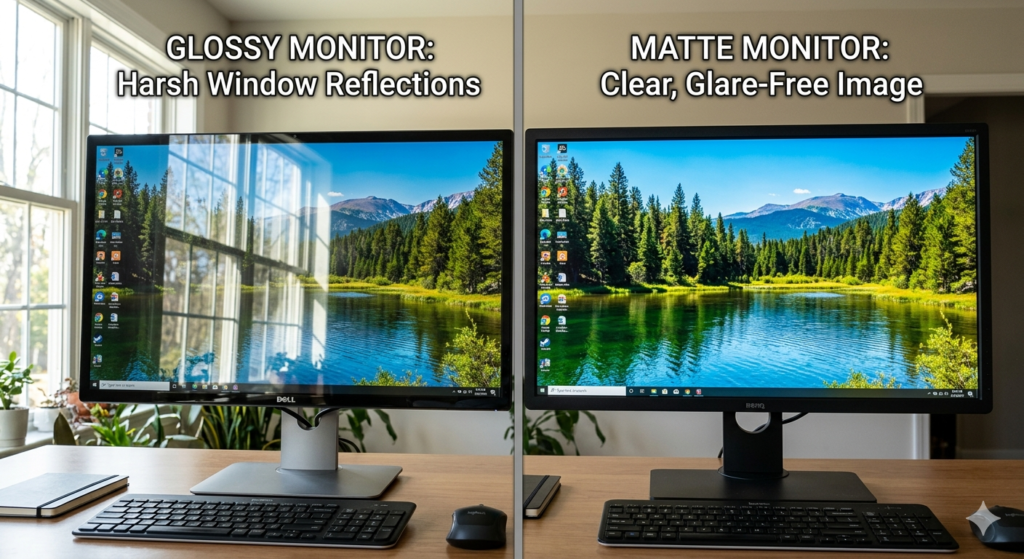
Even if your monitor uses high-quality, flicker-free technology, external light can ruin the viewing experience. Screen glare occurs when overhead lighting or sunlight bounces off the glossy surface of your monitor and directly into your eyes.
Glare acts as a layer of visual “noise.” Your eyes are forced to constantly shift focus back and forth between the reflection on the glass and the actual text beneath it. This continuous refocusing leads directly to the focusing fatigue discussed extensively in our pillar guide, Computer Vision Syndrome: Preventing Digital Eye Strain.
If you work in a brightly lit room with unmanageable overhead lights or large windows, a glossy monitor is a liability. Applying an anti-glare film to your display can physically scatter the incoming light, transforming sharp, painful reflections into a soft, diffused glow that allows your eyes to relax.
Optimizing the Contrast Ratio
The final technical element to audit is your monitor’s contrast ratio and text scaling. Contrast is the difference in brightness between the text and the background.
If your contrast is too low (e.g., dark grey text on a light grey background), your eyes must strain to decipher the edges of the letters. If the contrast is too high (e.g., pure white text on a pitch-black background in a dark room), the text can appear to “bleed” or halo, causing an uncomfortable dazzling effect.
For optimal comfort, aim for sharp, black text on a soft, off-white or slightly warm background. Furthermore, do not force your eyes to decipher tiny text. Utilize your operating system’s display settings to scale your user interface and text size up to 125% or 150%.
Conclusion
Getting a headache from computer work is a sign that your hardware is clashing with your biology. By looking beyond physical posture and auditing your monitor’s technical specifications, you can eliminate the hidden stressors that cause neurological fatigue. Prioritize flicker-free displays, manage external lighting to eliminate screen glare, and dial in a comfortable contrast ratio. Taking control of these technical factors ensures that your digital environment supports your focus rather than punishing your eyes.
Frequently Asked Questions (FAQ)
How do I know if my monitor has PWM flickering?
You can perform a simple test using your smartphone camera. Lower your monitor’s brightness to 30%, open your phone’s camera app in “Pro” or manual mode, and point it at the screen. If you see thick, dark bands rolling across your phone screen, your monitor uses PWM flickering.
Can a high refresh rate reduce eye strain?
Yes. A higher refresh rate (such as 120Hz or above) results in smoother motion and less motion blur when scrolling. This reduces the micro-adjustments your eyes must make to track moving text, thereby decreasing visual fatigue.
Why does dark mode sometimes cause headaches?
While dark mode reduces overall brightness, reading pure white text on a pitch-black background can cause “halation,” where the bright text bleeds into the dark background. This forces astigmatic eyes to squint to sharpen the text, leading to tension headaches.
Is a matte or glossy screen better for headaches?
If you suffer from headaches, a matte screen is almost always better. Matte screens have an anti-glare coating that diffuses ambient light and prevents sharp, mirror-like reflections that force the eyes to constantly refocus.